
Receiving one-time codes via SMS
Contractors can receive one-time verification codes not only via email but also add an additional authorization method — receiving one-time codes via SMS.
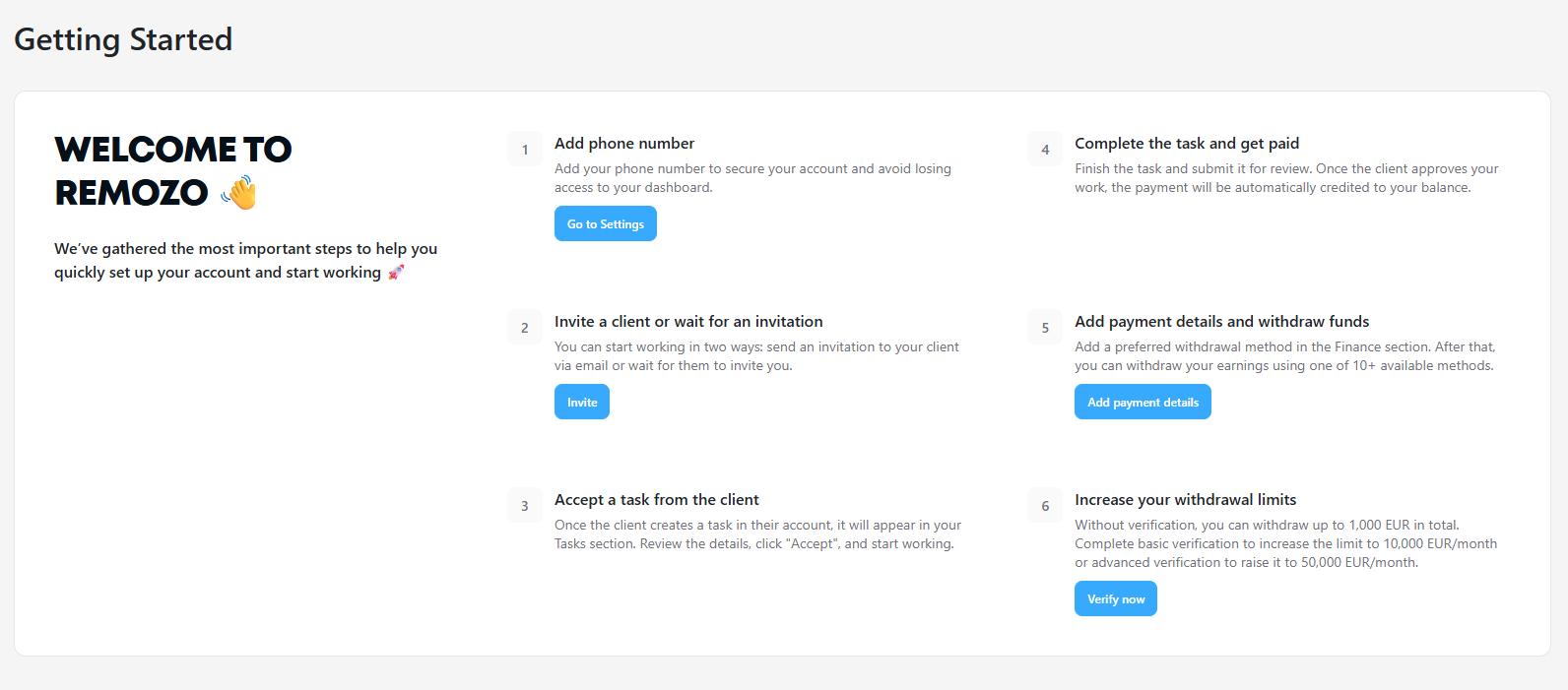
If a contractor has not added a phone number, or if the number has been added but not confirmed, a prompt to add and confirm the phone number will appear on the “Getting Started” page.
After the phone number is successfully added and confirmed, this step will be marked as completed.
How to Add a Phone Number
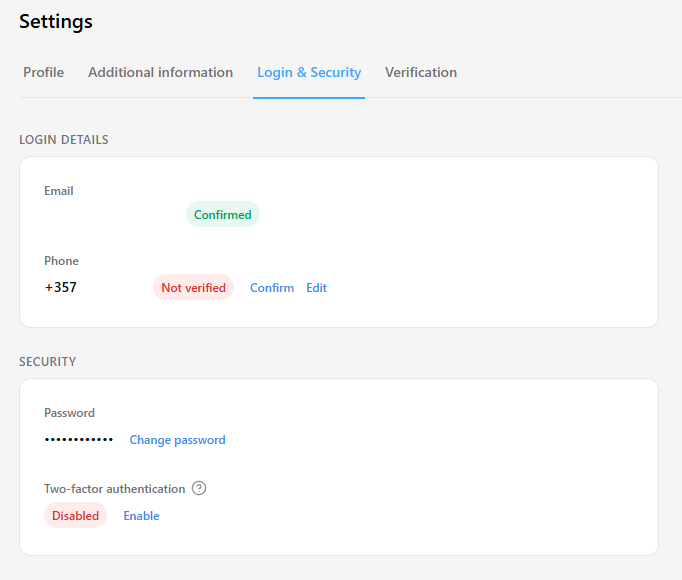
To add or confirm a phone number:
- Go to Settings.
- Open the Login & Security tab.
- Enter your phone number and confirm it.
For users who registered before SMS registration was introduced, a phone number may already be listed but have the status “Not verified” This is because phone numbers were previously collected during registration without verification.
In this case, the user can:
- confirm the previously added phone number;
- change it if the number was entered incorrectly.
How to Change or Confirm a Previously Added Phone Number
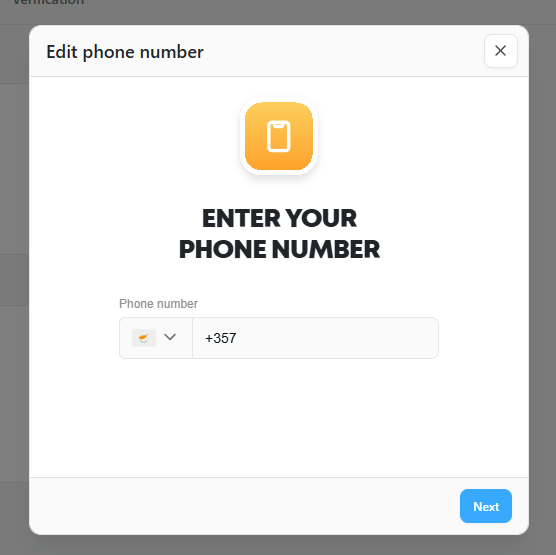
To change the phone number:
- Click “Edit” next to the phone number.
- In the window that opens, enter a new phone number.
- Enter the verification code sent to the number via SMS.
After entering the correct code:
- the modal window will close;
- a notification confirming successful verification will appear;
- the phone number status will change to “Confirmed.”
Code Validity and Resending
- The verification code is valid for 60 seconds.
- After this time, the code becomes invalid.
- The user can request a new code.
Actions That Require Confirmation
Confirmation is required for the following actions:
- logging in when two-factor authentication (2FA) is enabled;
- enabling or disabling 2FA;
- adding payment details;
- requesting a payout.
How Action Confirmation Works
All actions are confirmed using the same flow:
- The user performs an action that requires confirmation.
- A 6-digit verification code is sent to the user’s email.
- A window appears notifying the user that the code has been sent.
- A resend timer (1 minute) starts.
After the timer expires:
- if the contractor has a confirmed phone number, an option to receive the code via SMS becomes available.
If the code is entered incorrectly, the system will display an error message.
After the correct code is entered:
- the confirmation window closes;
- the action is completed;
- the user receives a notification that the operation was successful.